Get started
Getting started
First launch, permissions, and your first scan — from paper to finished PDF.
What PDFScanner Neo is
PDFScanner Neo is focused on one task: scanning paper documents into clean, compact and searchable PDF files as quickly as possible. It is not a general-purpose document manager. You capture pages, clean them up, save the finished PDF into a folder you choose, and move on to the next document.
Neo brings PDFScanner, which was a Mac-only app for 15 years, to iPhone and iPad — redesigned from the ground up for a mobile-first workflow. Looking for PDFScanner on the Mac? That’s still the original PDFScanner app.
What you need
- An iPhone or iPad with iOS/iPadOS 26 or later.
- Optionally, a network scanner that supports AirScan/eSCL — the standard used by most modern Wi‑Fi scanners and multifunction printers from HP, Brother, Epson, Canon and others.
- No scanner? No problem. On iPhone and iPad you can scan with the built-in document camera.
First launch
The first time you open PDFScanner Neo on iPhone or iPad, a short info screen explains the two ways the app captures documents:
- Local Network Access
- iOS may ask to search your local network for AirScan scanners. Allow it if you might use a hardware scanner now or later.
- Camera Scans
- PDFScanner Neo also works with this device’s camera, so you can scan without a hardware scanner.
Tap Continue to start. iOS then shows the system Local Network permission prompt so Neo can discover scanners. If you decline, camera scanning keeps working — you can change your mind later in the iOS Settings app under Privacy & Security → Local Network.
Camera access is only requested the first time you actually scan with the camera.
Your first scan
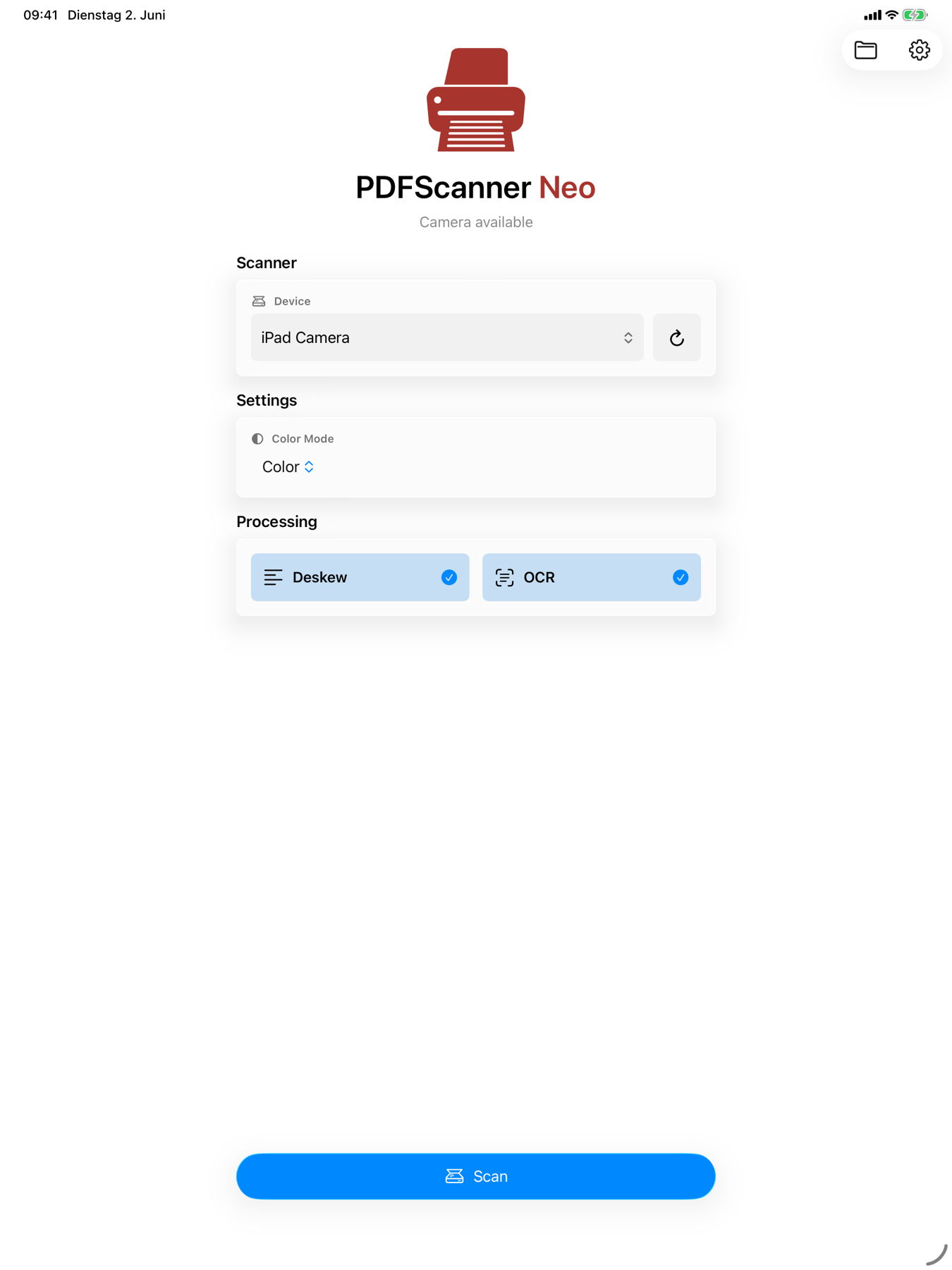
Choose a device. Open the scanner picker at the top of the scan panel. Discovered AirScan scanners appear automatically; on iPhone and iPad the built-in camera is always available as iPhone Camera or iPad Camera.
Pick a color mode. Color is the default. Black and White produces the smallest files for text documents. See scan settings for all options.
Tap Scan. Pages appear in the workspace as they arrive — from a document feeder they stream in one by one.
Review and tidy up. Drag thumbnails to reorder, swipe to delete, rotate or crop pages. See Organizing pages and Cleaning up pages.
Tap Save, then Select Folder. Choose any folder the Files app can reach — iCloud Drive, on-device storage, or a third-party provider. Neo writes a finished PDF copy there.
Where your PDF ends up
Saving in Neo always means exporting a finished copy. The workspace itself is a temporary assembly area, not a library — your documents live in the folders you save them to, where every other app can find them, and Siri and Spotlight can help you find them by content. After a successful save, the pages stay in the workspace until you discard them, so you can save the same document to a second place or keep scanning.
Next steps
- Understand the scan workspace — toolbar, thumbnails, recovery.
- Scan with a hardware scanner — sources, resolutions, per-scanner settings.
- Make scans searchable with OCR.
- Automate repeat saves with presets.