
Saving
Smart Save
Automatic preset matching from document text — with keywords or Apple Intelligence.
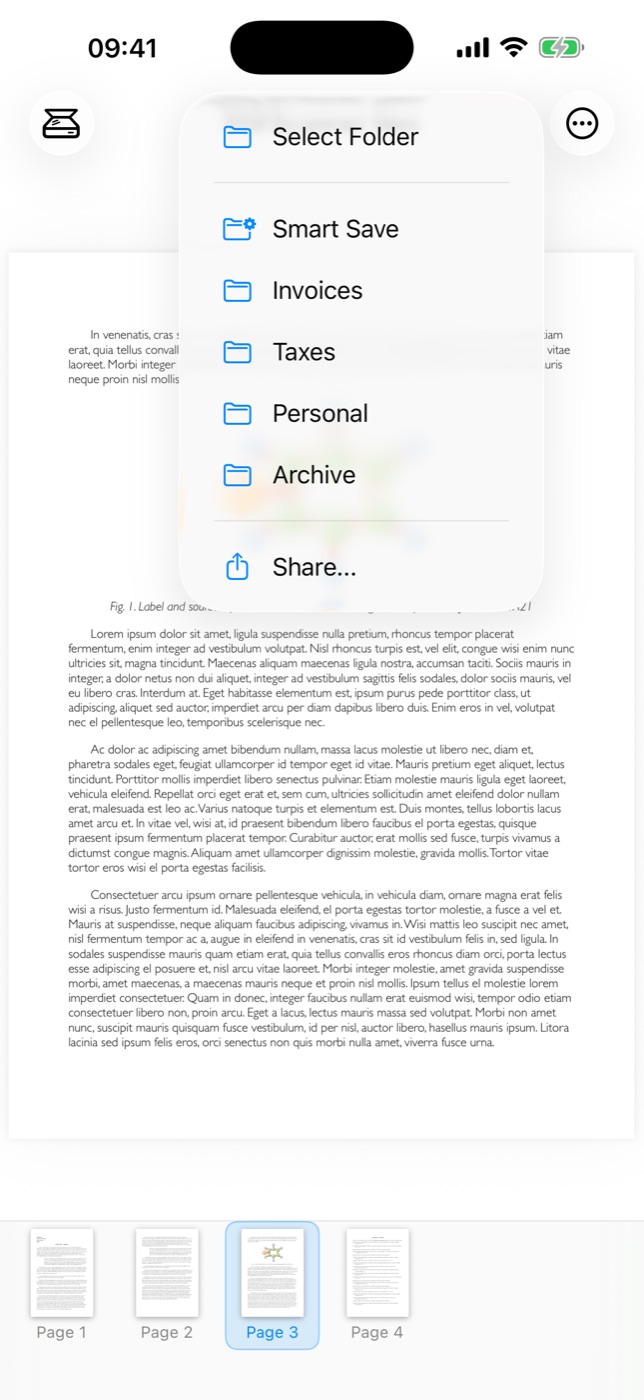
Let the document choose the folder
Smart SavePro reads the text of your scanned document and picks the matching save preset — folder, filename pattern and format — automatically. Scan an electricity bill, tap Smart Save, and it lands in your Invoices folder named by the date printed on it, while a delivery note would have gone to Orders.
Presets are checked in the order they appear in Settings → Save Presets; the first match wins. If nothing matches, the Default preset is used as the fallback.
Matching with keywords
In a preset’s Smart Save section, enter comma-separated keywords (e.g. invoice, payment due). Two modes:
- Require All Keywords on — every keyword must appear in the document text.
- Require All Keywords off — any one keyword is enough.
Keyword matching is simple, fast, and fully on-device. It works best with words that reliably appear on one kind of document and not on others — a sender name, a contract number prefix, the word Rechnung.
Matching with Apple Intelligence
Instead of keywords, switch a preset to Use Apple Intelligence and describe the target in plain language — invoices or receipts, anything from my bank. Neo asks Apple Intelligence whether the document matches that description. This needs a device with Apple Intelligence enabled; if it is unavailable, Neo tells you and keyword presets keep working.
Private Cloud Compute
By default, Apple Intelligence matching runs entirely on-device. On devices running iOS/iPadOS 27, Settings → Smart Save Intelligence offers Use Private Cloud Compute: matching then uses Apple’s more capable server models. The document’s first page is sent to Apple’s servers, where it is processed privately and never stored. The switch is off by default and affects only Apple Intelligence presets — keyword matching always stays on-device.
Running Smart Save
Scan or open the document. For keyword presets and OCR-based filenames, make sure OCR has run.
Tap Save → Smart Save (or Smart Save Selection for selected pages). The status line shows each preset being checked.
The result banner names the preset and file — with a preview and a trash button that deletes the file again if the match was wrong.